Working with data
SQL editor.
Write and run SQL on any of the five SQL engines: run a statement, a selection or a whole script, watch and cancel it, then keep what you wrote as files, snippets, history or notebooks.
Writing SQL#
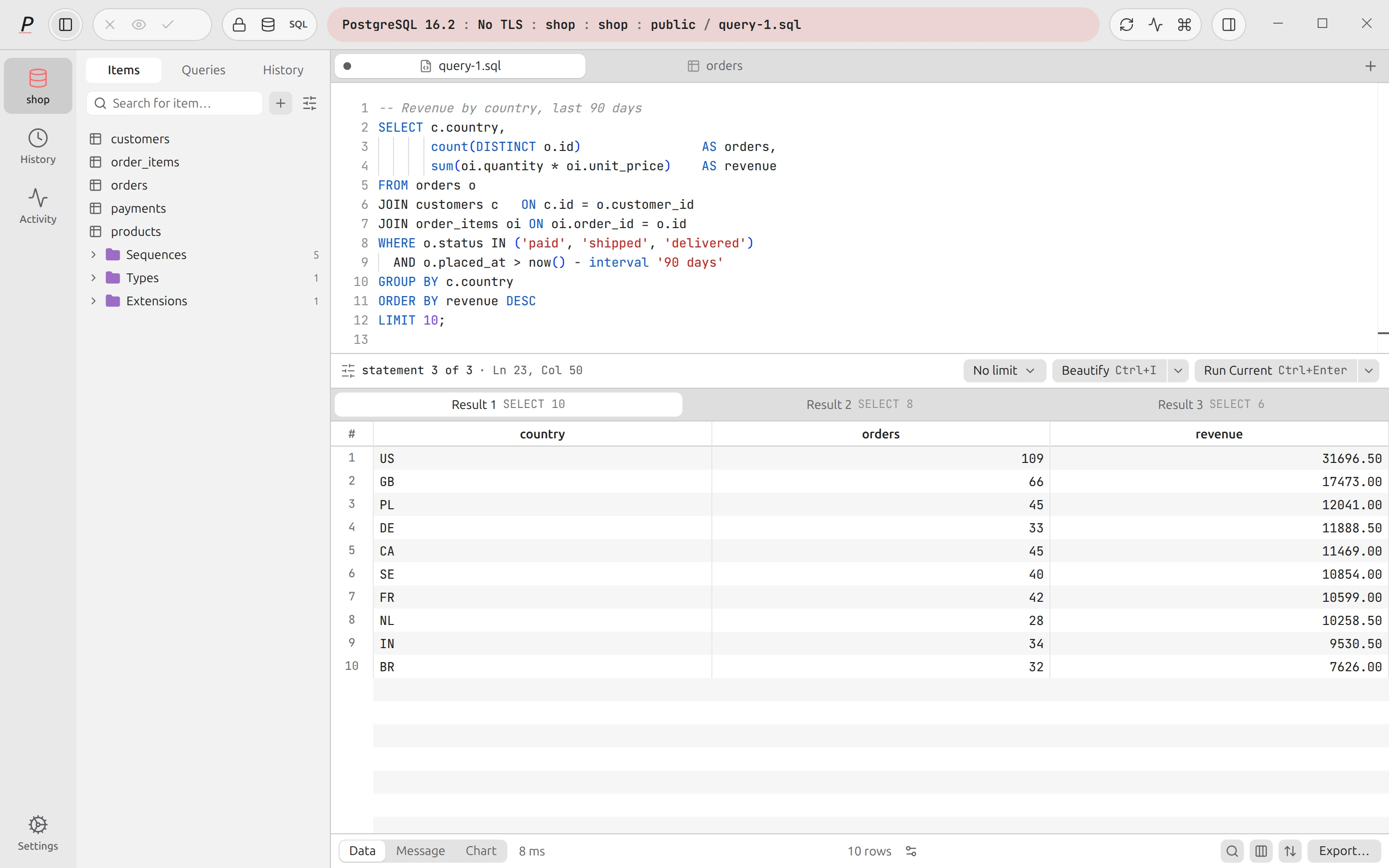
Open a SQL tab with New SQL query (⌘TCtrl+T). The editor is Monaco, the editor of VS Code, with SQL highlighting and the Paper theme. A status line under it shows the cursor (Ln 12, Col 4) and, in a script, statement 2 of 5.
Autocomplete#
Suggestions come from the schema of the connected database and update when you reconnect.
- After a dot (
alias.orschema.) you get the columns of that table or the tables of that schema. An alias used inFROMworks. - After
FROM,JOIN,UPDATEorINTOyou get tables, with the estimated row count. Tables outsidepublicare shown schema-qualified. - Elsewhere you get tables, column names (with type,
pkandnot null), keywords and snippets.
The completion list is built from the schema Plasma already loaded; it does not send anything anywhere.
Beautify#
Beautify (⌘ICtrl+I or ⌘⇧FCtrl+Shift+F) reformats the SQL with upper-case keywords, two-space indentation and logical operators at the start of a line. If the formatter cannot parse your text it leaves it unchanged, so a half-written query is never lost.
Font, wrap and files#
The chevron next to Beautify (More editor actions) holds Ask AI about this SQL, Open SQL File…, Save to File… / Save As…, Word Wrap, Larger Font and Smaller Font. The font size ranges from 10 to 24 px and is also in Settings → Editor. ⌘SCtrl+S saves the tab to its .sql file (or, in a table tab with staged edits, commits them) and ⌘⇧SCtrl+Shift+S saves under a new name.
Select text and right-click for Save Selection as Snippet….
Query variables#
Write a placeholder as :name, :'name' or $name and a variables bar opens above the results when you run. Placeholders inside strings, quoted identifiers, comments and dollar-quoted bodies are ignored, and so is a ::cast. Each variable has a type:
| Type | How the value is used |
|---|---|
| Text | Bound as a real parameter ($n). |
| Number, Date, Boolean, NULL | Sent as a typed parameter where the statement allows one; where Postgres cannot infer the type, Plasma writes the value in as a literal. |
| Raw SQL | Pasted into the statement exactly as typed (a table name, an expression). It is not escaped. |
The bar remembers earlier values, and a workspace query stores its variables in the file.
Running SQL#
| Action | Shortcut | What runs |
|---|---|---|
| Run Selected | ⌘⏎Ctrl+Enter | The selected text, if any. |
| Run Current | ⌘⏎Ctrl+Enter | With no selection, the statement the cursor is in. The button reads Run Selected or Run Current to match. |
| Run All | ⌘⇧⏎Ctrl+Shift+Enter | The whole buffer, statement by statement. |
| Safe Run | ⌘⌥⏎Ctrl+Alt+Enter | A dry run of an INSERT, UPDATE, DELETE or MERGE, or of a selected script of up to 20 of them (below). |
| Cancel | ⌘.Ctrl+. | The statement that is running. |
Plasma splits a script with a tokenizer that understands quotes, dollar-quoting and comments, so a semicolon inside a string does not end a statement. It runs the statements one after another and stops at the first error; the results of the statements that ran stay on screen, and the error says which statement failed (“statement 3 of 5”). psql meta-commands such as \d are not SQL and are refused, and COPY … FROM STDIN and COPY … TO STDOUT are refused with a pointer to Import or Export.
Each statement of a script gets its own result tab with the row count and time. Switch between them with the tabs or Alt+← / Alt+→ (⌥← / ⌥→ on macOS).
Row limit#
The Limit pill at the bottom right (also Settings → Editor → Row limit) caps how many rows are read per statement: 100, 300, 500, 1,000, 5,000 or No limit. Your SQL is never rewritten; Plasma just stops reading. Even with no limit, a result stops at 10,000 rows or about 32 MiB, and the grid is marked as truncated. To get everything, use Export, which streams the full result to a file.
Status, queueing and cancel#
A status chip shows Queued, Running or Cancelling with the time. Statements on one connection run one at a time: if another tab is using the connection, the chip reads Waiting for the connection and the query starts when the other one finishes.
Cancel asks the server to stop the statement; on Postgres it uses a separate connection, so it works even while the main one is busy. If the server has not stopped it after a while, the chip offers Cancel again and Disconnect to stop it. After a cancel, the tab says Cancelled; if the statement finished first, that is shown instead.
When a run does not succeed the result area explains why:
- Query failed: the server’s message, with the position of the error underlined in the editor where the engine reports one, and a Fix with AI button.
- Connection dropped: a read can simply be run again once the connection is back.
- Outcome unknown: a write whose answer never arrived. Plasma does not re-run it. The panel says “Nothing was re-run. Look at the data before you run it again.” and, when it can tell which table was written, offers Check the data.
Settings → Security → Query timeout sets statement_timeout for the queries you run. The default is no timeout; you can choose 5, 15, 30 or 60 seconds, or 5 or 15 minutes. Long exports and monitoring are not affected.
Transactions#
Turn on Settings → Advanced → Transactions (“Wrap every query in a transaction”) and the top bar shows Transaction open with Commit transaction and Roll back transaction buttons. Grid edit batches use their own transaction, or a savepoint if one is already open. A transaction that is still open when Plasma restarts for an update is rolled back, and the update dialog tells you so.
Safe Run#
Safe Run (PostgreSQL only) executes an INSERT, UPDATE, DELETE or MERGE inside a transaction, shows you exactly which rows it changed, and waits for your decision. Nothing is saved until you click Commit; Roll back discards it.
- The review shows the row count (with a
+when it is not exact), and a grid of the affected rows: inserted, deleted and changed rows are tinted, and a changed cell showsbefore → after. Unchanged rows of an UPDATE are hidden behind a count you can expand. - UPDATEs are paired by primary or unique key. Without one, rows are matched by their physical position, and the panel says so. When rows cannot be matched at all, old and new rows are listed separately.
- Above the Safe Run warning threshold (default 1,000 rows; choices 10, 100, 1,000, 10,000, 100,000) the panel warns and Commit turns red.
- While a Safe Run waits for you, other statements on that connection are paused. An undecided one rolls back by itself after the Safe Run timeout (default 5 minutes; 30 seconds to 30 minutes) so it never holds locks open.
- A connection can Always Safe Run writes: then Run on a write does a Safe Run first, and so does Run on a script of 2 to 20 writes (a script that mixes in anything else runs normally). This is on by default for Prod connections. It is not available on a read-only connection.
Safe Run is for data changes. For DDL the panel tells you to use a normal run.
Scripts. Select several statements and press ⌘⌥⏎Ctrl+Alt+Enter to Safe Run them as a script: up to 20 INSERT, UPDATE, DELETE or MERGE statements (or WITH statements that end in one of those), run in order in one transaction. With no selection, Safe Run takes the statement at the cursor, as before.
- Every statement is checked before anything runs. Any other statement (a
SELECT, DDL,BEGIN,COMMIT,ROLLBACK,SAVEPOINT,SET,VACUUM,CALL,DO) refuses the whole script and names the statement number. More than 20 statements is refused too. Empty statements are dropped. - The review lists the statements with their row counts and timings. Select one (arrow keys, then Enter) to see its before and after rows. Later statements see the changes of earlier ones, so a statement's before rows are as of that point in the script.
- The row threshold applies to the total rows changed by the script, and Commit all turns red above it. The Safe Run timeout covers the whole script: if it runs out, everything is rolled back. On a Prod connection one confirmation lists every statement.
- Undo last statement rolls back only the last statement that ran and leaves the earlier ones pending. Repeat it as often as you like; undoing the only statement left rolls back the whole script.
- If a statement fails, its own changes are undone, the script stops, and the statements after it are marked not run. The earlier statements stay pending, and nothing is saved. Commit all is not offered; you can Roll back all, or choose the separate Commit 1–n button to save only the statements that succeeded. If the first statement fails, nothing is held open and the error is shown.
- Each statement keeps up to 500 before and after rows, and the script as a whole up to 2,000 per side; the panel says when rows are left out. Row counts keep counting past those limits (up to 1,000,000, shown with a +).
- A committed script is one history entry holding the whole script; on a connection that is audited, each committed statement gets its own Safe Run row.
EXPLAIN#
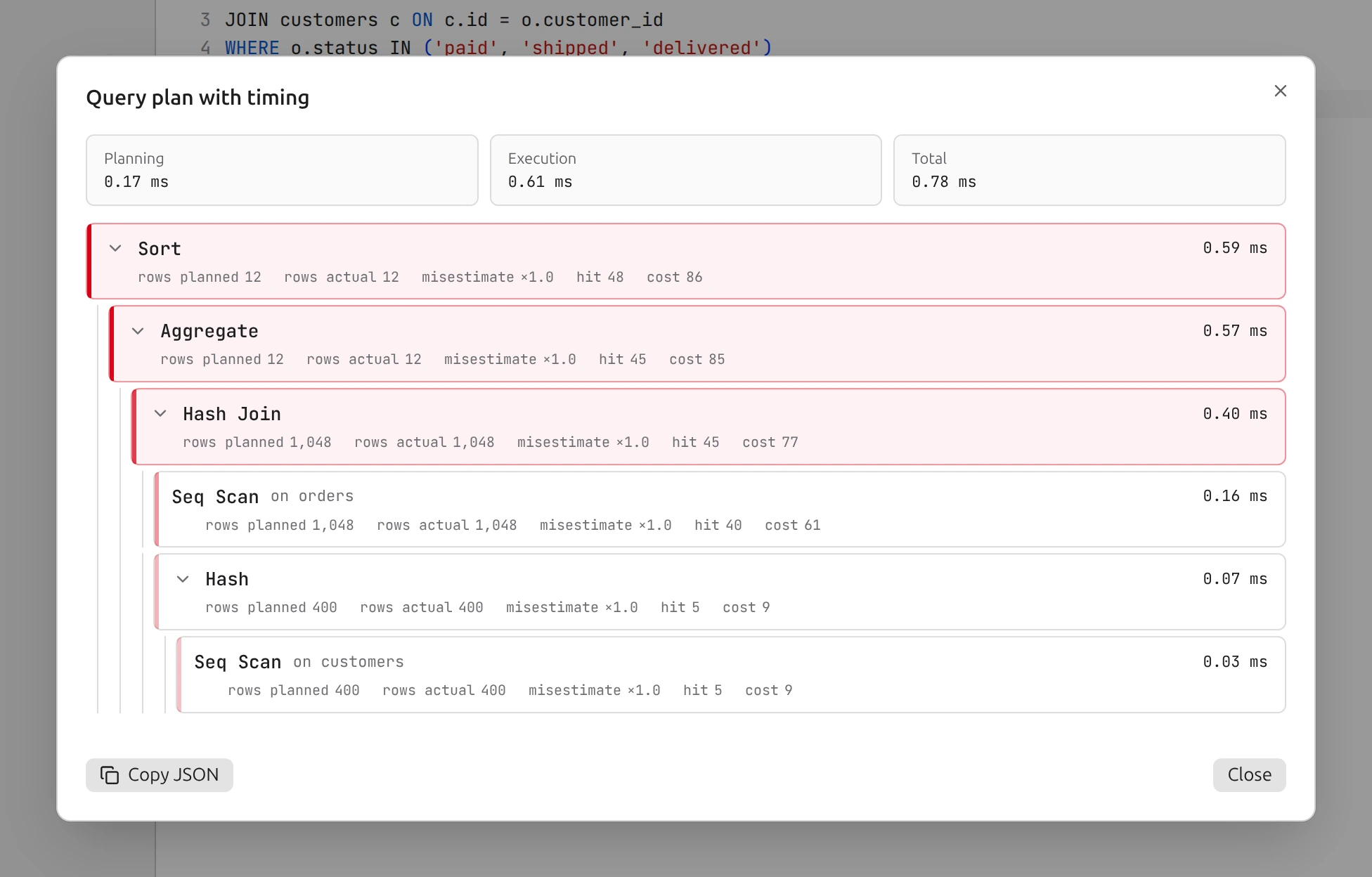
Explain Analyze… in the Run menu opens the plan as a tree. It starts with a plain EXPLAIN, which executes nothing, titled Query plan. Each node shows planned rows and cost; the buttons are Copy JSON, Explain with AI and Run with ANALYZE. ANALYZE actually executes the statement to get real timings (Query plan with timing), adding planning and execution times, actual rows, the misestimate, and buffer hits and reads.
- For a statement that writes, ANALYZE runs inside a transaction that is rolled back, and is gated like any other write (Prod and Safe mode confirmations apply). On a read-only connection it is off for those statements.
- Closing the dialog while ANALYZE runs cancels the statement.
- Plain EXPLAIN is available on PostgreSQL, MySQL/MariaDB, SQLite and ClickHouse; ANALYZE only on PostgreSQL. DuckDB has no plan view.
- Explain with AI sends the query and the summarised plan to your AI provider (see AI tasks) and may propose
CREATE INDEX CONCURRENTLYstatements, at most three. It only suggests; it does not run them.
History, saved queries and snippets#
The left sidebar has three modes: Items, Queries and History.
Query history#
Plasma records every statement you run, whether it succeeded or failed, with its row count and duration. It keeps the newest 5,000 entries; older ones are removed as new ones arrive. Passwords in PASSWORD '…' literals and in password= connection strings are masked before an entry is stored, and error text is stripped of the values it quotes.
- The sidebar mode lists entries for the current connection with Search for history…. Each can Open in new tab, Copy SQL, Save as query… or Delete from history.
- History in the icon rail (⌘⇧HCtrl+Shift+H) opens the full browser: search the SQL, and filter by connection, status (Succeeded or Errors) and duration (under 100 ms, 100 ms to 1 s, over 1 s). Entries can be saved as snippets or deleted, and the whole history can be cleared after a confirmation. Its Audit tab is described under Audit log.
Saved queries#
In Queries mode, save the current tab with Save current tab and give it a name. Queries can be favourited, renamed, moved into folders (New folder…, Move to folder) and updated from the current tab (Update with current tab). They are stored locally. To share queries with a team, save them to a workspace instead.
Snippets#
The Snippets section of Queries mode lists built-in and your own snippets. Type a snippet’s prefix in the editor and pick it from the completion list. The built-ins include selw (select where), selg (count by group), join, antijoin, ins, upsert, updw, delw, cte, rcte (recursive CTE), win, winsum, cic (create index concurrently), ct, addcol, expa, dups, sizes, activity and casew.
Your snippets have a Name, a Prefix, a Description and a Body in Monaco snippet syntax: $1 for tab stops, ${2:default} for defaults, ${3|a,b|} for choices and $0 for the final position. Snippets can be imported and exported as JSON, and a workspace can carry its own.
Notebooks#
Notebook (⌘⇧NCtrl+Shift+N) opens a document of cells for the current connection: SQL cells and Markdown notes. Add a cell below any other, move it up or down, remove it, and run a SQL cell with the play button. A cell shows its result under it: the first 50 rows, with a note when more exist or the row limit was hit, and the last result when the cell holds several statements. Open in a tab runs the cell in a regular tab with the full grid.
Markdown cells support headings, bold, italic, code, lists and links, with a preview toggle. The draft is kept per connection on this computer. Copy as Markdown and Download .plasma.md export it; Save to the open team workspace writes it to .plasma/notebooks.