Working with data
Schema tools.
Change structure with a reviewable plan, draw the schema, diff two versions, check a migration for unsafe locks, manage roles, generate code and mock data, import files, back up, and search every table for a value.
Which engine gets what#
Most of these tools are built for PostgreSQL. The table shows where each one is offered; a tool that does not apply to the connected engine is also hidden from the command palette.
| Tool | PostgreSQL | MySQL / MariaDB | SQLite | ClickHouse | DuckDB |
|---|---|---|---|---|---|
| Structure editor (staged changes) | Yes | Add column, rename | Add column, rename | View | View |
| ER diagram | Yes | Yes | Yes | ||
| Schema diff, Check migration, Search in database | Yes | ||||
| Roles and privileges | Yes | ||||
| Import data wizard | Yes | ||||
| Back up / Restore | Yes (pg_dump) | File copy | |||
| Codegen, Notebook | Yes | Yes | Yes | Yes | Yes |
Structure editor#
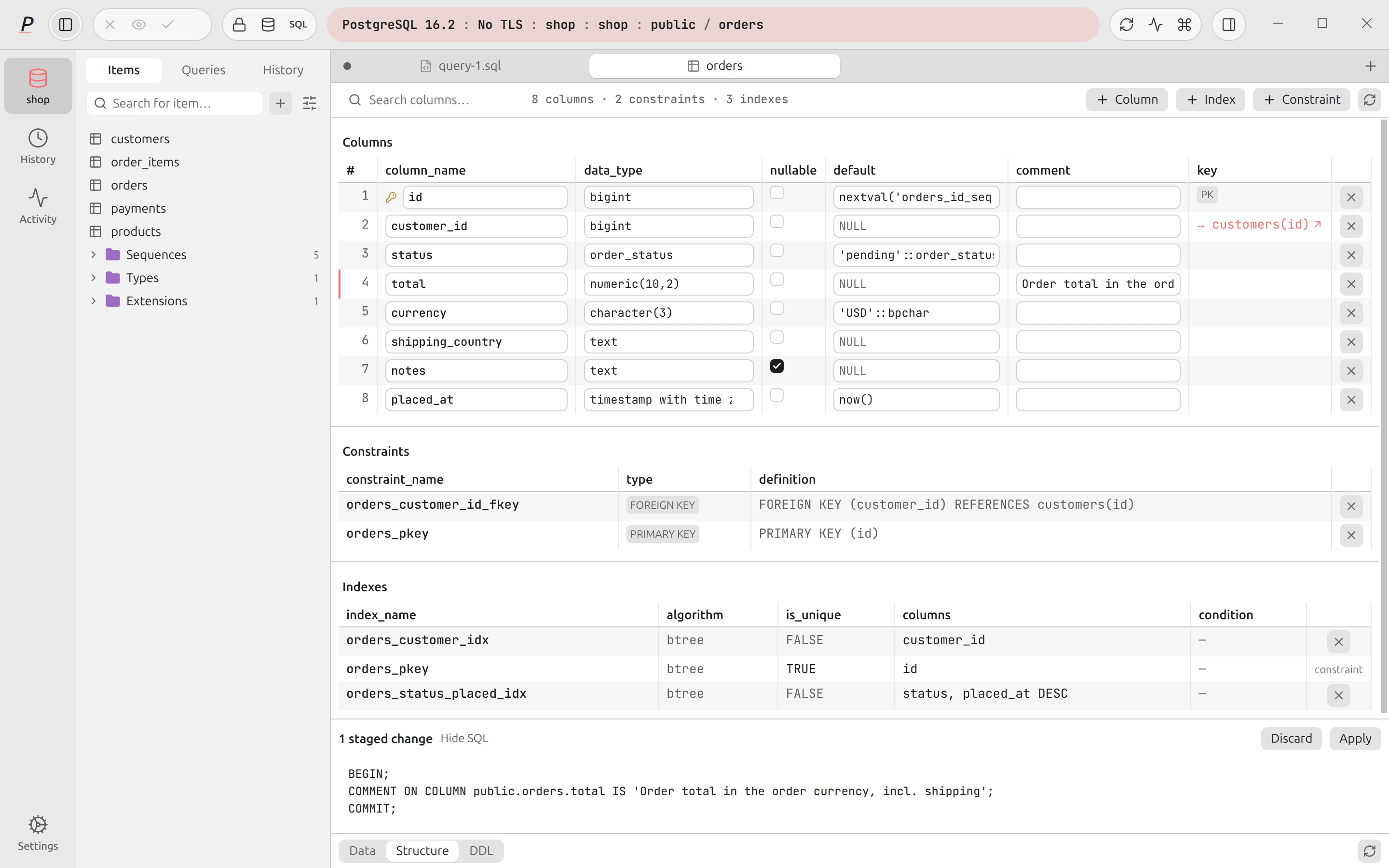
Open a table and switch the footer to Structure. On PostgreSQL the columns, constraints and indexes are editable in place. Nothing runs as you type: each change is staged, and the generated SQL is shown by Preview SQL.
- Columns: rename, change the type (with an optional USING expression for the conversion), toggle nullable, set a default or a comment, mark a column to drop (Drop column, undo with Keep column), or add one with + Column.
- Indexes: + Index asks for an optional name, the columns (order matters), the method and an optional partial-index
WHERE; existing indexes can be dropped. An index that backs a constraint says to drop the constraint instead. - Constraints: + Constraint adds Unique, Check or Foreign key (with the referenced table and columns and the update and delete actions).
Apply runs the plan; Discard drops it. Everything runs in one transaction, except statements that Postgres only allows on their own (CREATE INDEX CONCURRENTLY), which run separately. The usual guards still apply: a read-only connection refuses, and Prod or Safe mode shows a confirmation with the exact SQL. The plan is also run through the migration check before you can apply it.
On a table, the sidebar’s New table, view or import button opens New table (columns with type, primary key, not null and default, plus a live SQL preview) and New view (a view or a materialized view from a query).
On MySQL/MariaDB and SQLite the Structure view lists columns, keys, foreign keys, indexes and triggers and offers Add column and rename for columns and the table. On ClickHouse and DuckDB it is a viewer; DuckDB also shows a per-column profile (null %, approximate distinct count, min and max).
Sidebar object actions#
Right-click an object in the Items sidebar for Open, Open in new tab, Open structure, Show diagram, Copy name, Copy qualified name, and Copy script as CREATE, SELECT, INSERT, TRUNCATE or DROP. Truncate… and Drop… show the exact statement and a Cascade to dependent objects option first, and then run through the normal query path, so Prod gates, Safe mode and read-only apply. Import…, Export as CSV… and Export as JSON… are there too.
ER diagram#
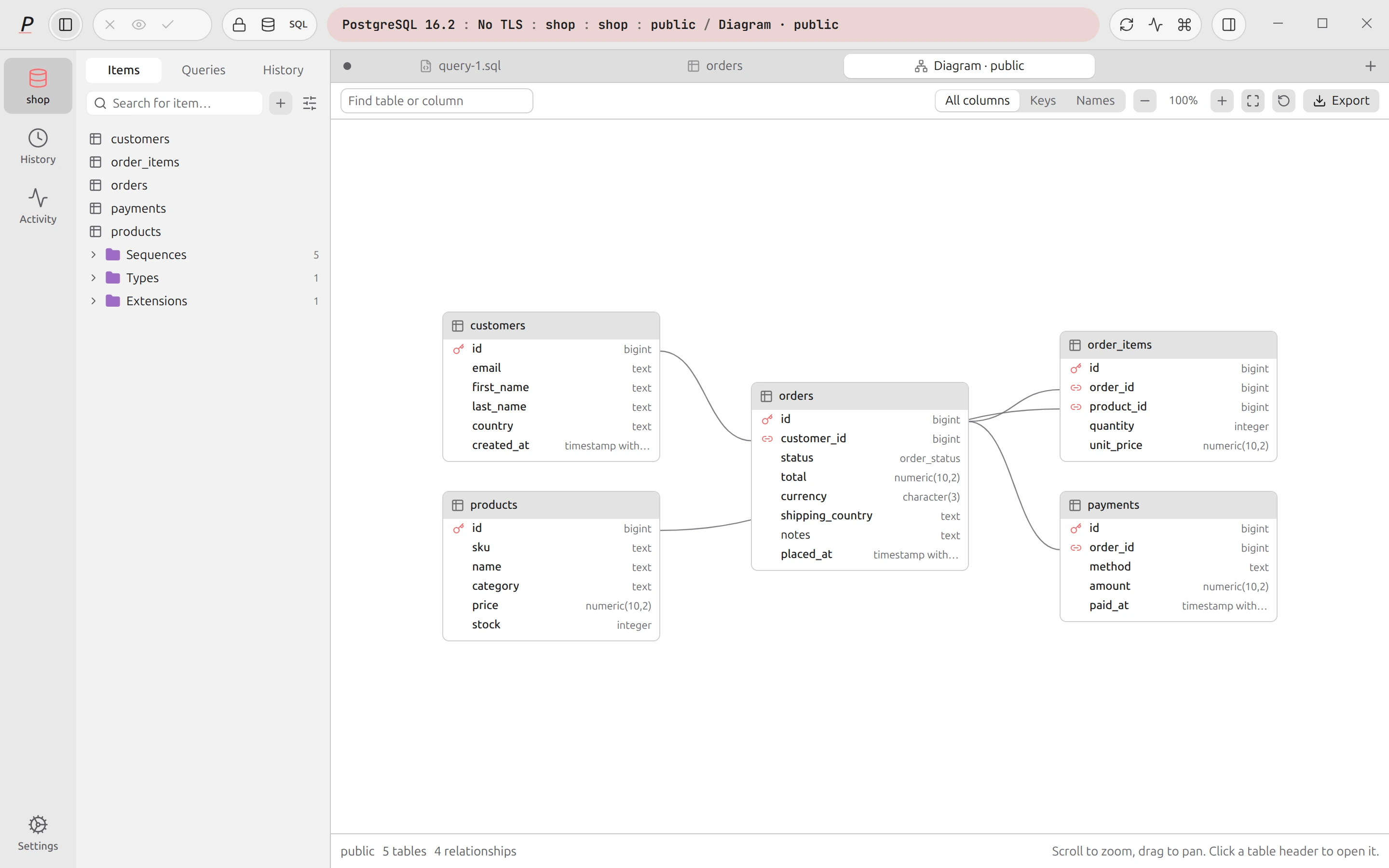
Show diagram (palette, Database menu, or the sidebar) draws the tables of a schema as boxes joined by their foreign keys. It uses the active table’s schema, or public. Drag tables to arrange them, zoom in and out, Fit to screen and Reset layout. Find table or column filters the diagram. The options menu chooses how much of each table to draw: All columns, Keys only or Names only. Click a table to open it. Export diagram saves a PNG or SVG image.
It is built from the foreign keys Plasma reads from the database, on PostgreSQL, MySQL/MariaDB and SQLite. ClickHouse has no foreign keys and DuckDB has no diagram.
Schema diff#
Schema diff… (⌘⇧DCtrl+Shift+D, PostgreSQL) compares two versions of a schema and writes the migration that turns the first into the second. Choose a left and a right side from your snapshots and the live schema. Take snapshot (with an optional name) saves the current structure locally; Plasma keeps the newest 50. A typical use: snapshot, make changes, diff the snapshot against live.
- The diff covers added, dropped and kind-changed relations (table to view and so on) and, for tables, added and dropped columns and changes of type and nullability. Every statement uses the right verb for the kind (
DROP VIEW, notDROP TABLE). - Snapshots do not store view bodies, partition bounds, CHECK or UNIQUE constraints or grants. For those, the script says what to copy over instead of inventing SQL.
- Copy migration copies the script. Review it, and run it through migration check.
Migration check#
DDL can lock a production table for minutes. Check migration… (PostgreSQL) looks at the whole script in the editor, without running it, and reports two things: lint findings and the table locks each statement takes. The same panel appears above every Preview SQL (structure edits, roles, import scripts) and as squiggles in the editor.
What it flags#
Each finding has a severity (error, warning or info), the reason, and a safer alternative. The rules are:
| Severity | Rule |
|---|---|
| Error | CREATE INDEX without CONCURRENTLY |
| Error | Unique index / constraint built while blocking writes |
| Error | ADD COLUMN forces a table rewrite |
| Error | ADD COLUMN … NOT NULL without a default |
| Error | ALTER COLUMN TYPE rewrites the table |
| Error | ADD FOREIGN KEY without NOT VALID |
| Error | ADD CONSTRAINT CHECK without NOT VALID |
| Error | VACUUM FULL / CLUSTER rewrites the table |
| Error | Changing a primary key |
| Error | CONCURRENTLY inside a transaction block |
| Warning | DROP INDEX without CONCURRENTLY |
| Warning | SET NOT NULL scans the whole table |
| Warning | Foreign key columns have no index |
| Warning | RENAME COLUMN / RENAME TABLE breaks running applications |
| Warning | DROP COLUMN / DROP TABLE is destructive |
| Warning | TRUNCATE removes all rows |
| Info | No lock_timeout set |
Some findings carry a one-click fix such as Add CONCURRENTLY, Add NOT VALID or a SET lock_timeout line. Where a panel guards an action (applying a structure change, for example), error findings must be acknowledged with Run anyway. I understand the risks listed above. before the button enables. In Settings → Editor you can turn the linter off, show only warnings and errors or only errors, and untick individual rules to mute them everywhere.
Lock preview#
For each statement the panel names the table lock it takes, from ACCESS SHARE up to ACCESS EXCLUSIVE, and what that lock blocks (nothing, writes, or reads and writes). It also reads the live database for the affected table — estimated rows, size, and the sessions that are using it now, with their pid, user, state and query — so you can see who you would be waiting for. Refresh the context with the refresh button.
Roles and privileges#
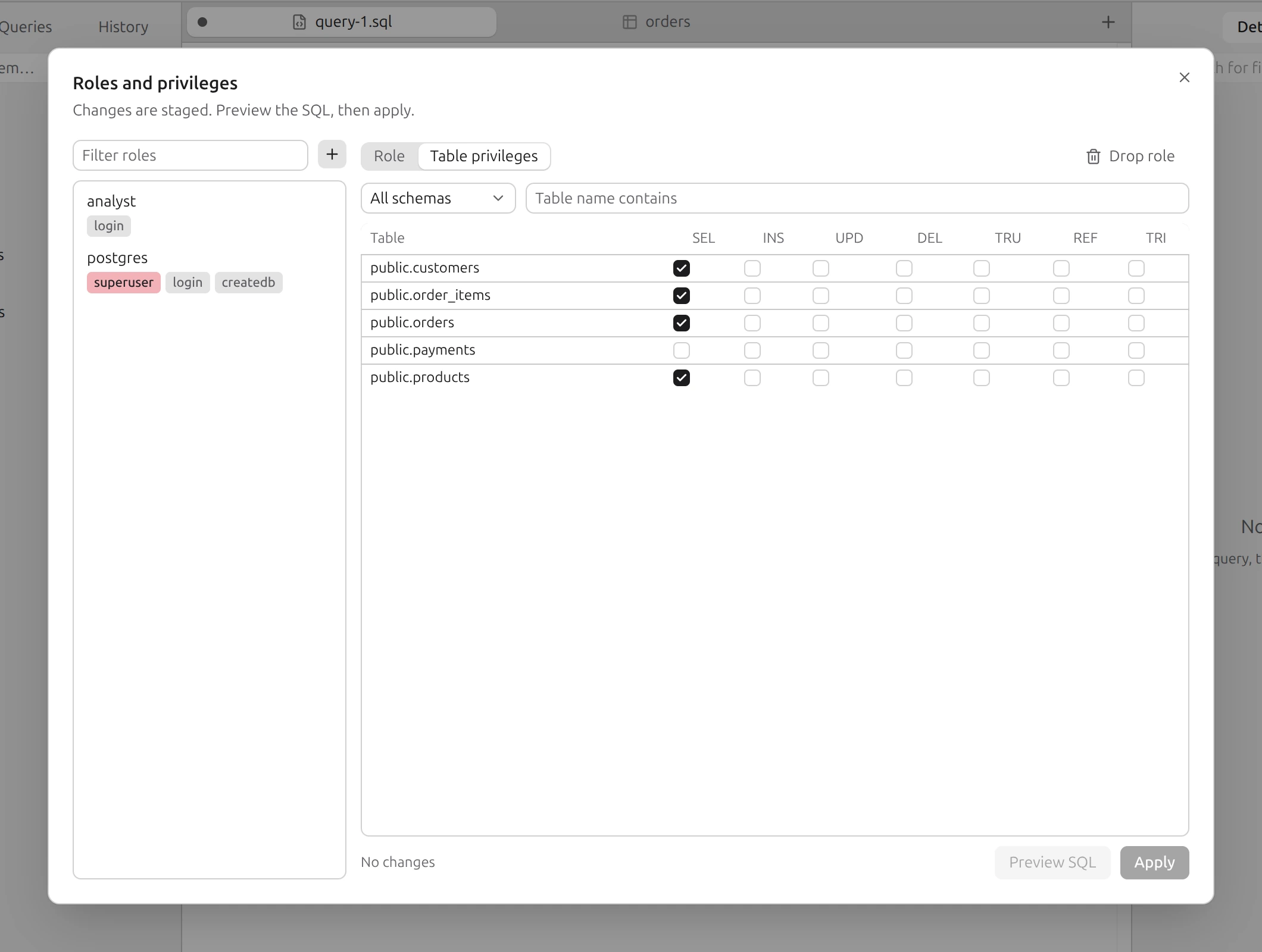
Roles and privileges… (PostgreSQL) lists the server’s roles. Select one to edit it, or use the New role button. A role has a Name, a Password (blank keeps the current one), and attributes: Can log in, Superuser, Can create databases, Can create roles, Inherits privileges of member roles, Replication and Bypass row-level security; a connection limit (-1 is no limit), a Valid until date, and the roles it is a member of (with the reverse list of its members).
The Table privileges tab shows a grid of checkboxes per table and privilege. It shows direct grants only and the first 1,500 tables; narrow it with the schema selector and the table filter. Everything is staged: Preview SQL shows the statements, the migration check runs on them, and Apply executes them (Drop role for a deletion). On a read-only connection the dialog is view-only.
Separately, the right sidebar’s Session role panel shows and sets the role the current session runs as (SET ROLE), and Row-level security lists a table’s policies.
Code generation#
Generate code… (⌘⇧GCtrl+Shift+G) turns the tables of the connected database into code. Pick tables with the filter and checkboxes, then a target: TypeScript interfaces, Zod schemas, Prisma model, Drizzle (pg-core), SQLAlchemy 2.0 or CREATE TABLE (DDL). Copy the result. It is generated on your machine from the schema Plasma has already read, and the type mapping is a simple one based on the column type names, so review it before you rely on it.
Mock data#
In a table tab with edit mode on, the footer’s More menu has Generate mock rows…. Choose how many rows (1 to 5,000) and, per column, whether to include it and which generator to use: auto (picked from the column name and type), first, last or full name, email, URL, lorem ipsum, word, country code, random letters, integer, numeric, boolean, timestamp, date, UUID, JSON, a fixed value you type, or NULL. Values respect char(n) and varchar(n) lengths. Generation needs no extra library and nothing leaves your machine.
The rows are inserted in batches inside one transaction; if any batch fails they all roll back. Like any write, it asks for confirmation on Prod connections and under a Safe mode that asks.
Import data#
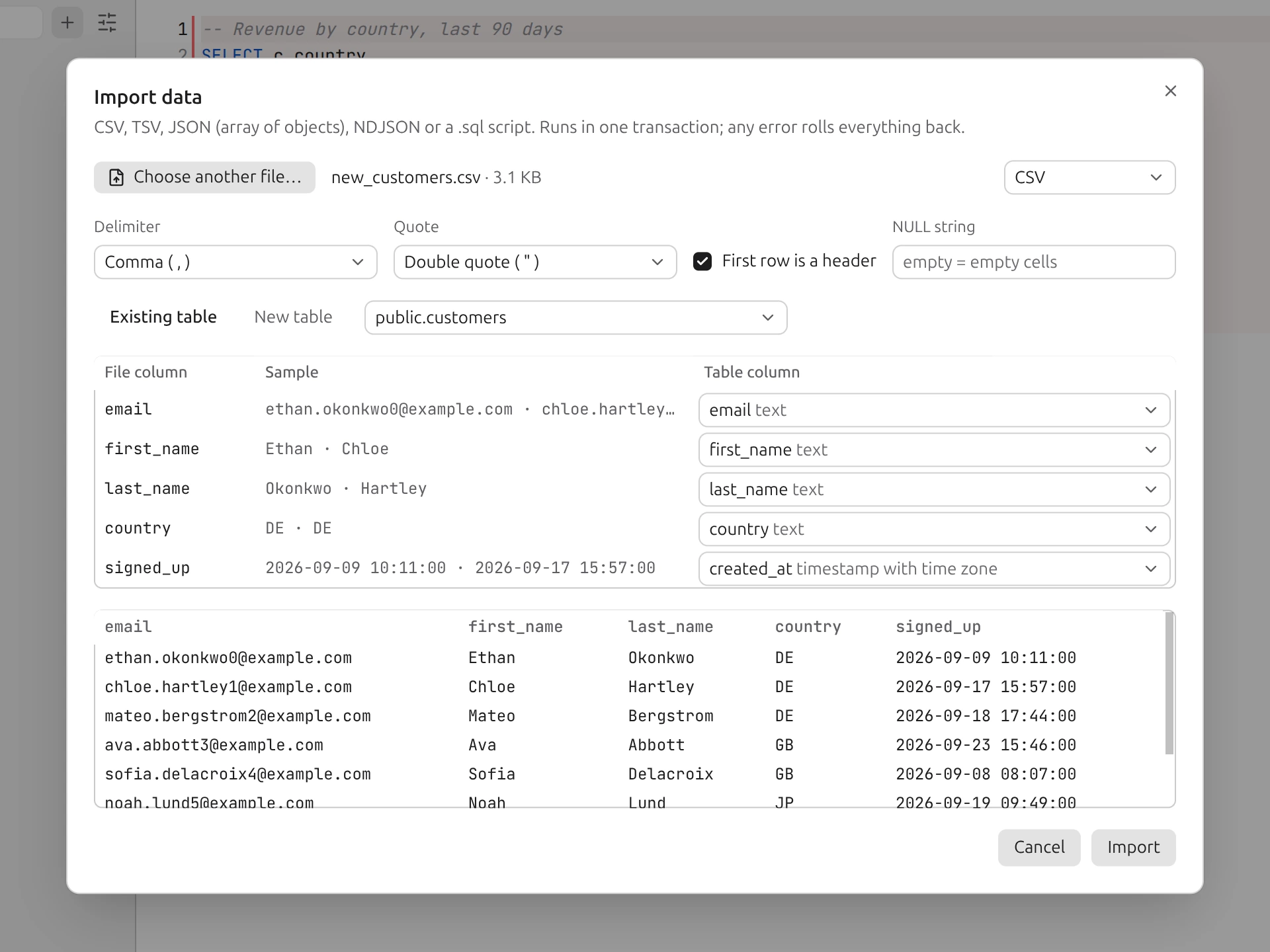
Import (PostgreSQL) reads CSV, TSV, JSON (an array of objects), NDJSON or a .sql script. Open it from a table’s menu, from New table, view or import, or from the terminal with plasma import.
- Choose a file; Plasma previews the first part of it (the first 8 rows are shown). For CSV you can set the Delimiter, the Quote character and the NULL string (empty means empty cells).
- Existing table maps each file column to a target column (or skips it). New table creates one, with a name and a type for each column, inferred from the data and editable.
- The import runs in one transaction: any error rolls everything back. It streams the file, so large files do not have to fit in memory, and shows rows read and rows inserted as it goes. Cancel before it ends and nothing is imported.
- A .sql script shows its first statements and goes through the migration check.
- Import is refused on a read-only connection, and the SQL it runs is recorded in the audit log when auditing applies to the connection.
Backup and restore#
PostgreSQL backups use the standard tools, so they must be installed on your computer: pg_dump, pg_restore and psql. Plasma looks on your PATH and in the usual install folders (Homebrew, Postgres.app, the PostgreSQL folders on Windows and Linux), or in the folder you set under Settings → Advanced → PostgreSQL tools. It warns with a Version mismatch badge when the tool is older than the server. The password is passed to the tool through the environment, not on the command line.
Back up database…#
- Objects: everything, selected schemas, or selected tables.
- Format: Custom (
.dump), Plain SQL, Directory or Tar. Contents: schema and data, schema only, or data only. - Options: no owner, no privileges, gzip compression (Plain SQL only), parallel jobs (Directory only). Then choose where to save and run it; the log shows the exact command and its output.
Restore database…#
Choose a backup file (or folder), its type (an archive restored with pg_restore, or a SQL script, optionally gzipped, run with psql) and the target database, which must already exist. Options: Clean: drop objects before recreating them, Use IF EXISTS when dropping, No owner and Single transaction (all or nothing), plus parallel jobs. Restore is refused on a read-only connection.
SQLite: Export database file copy…#
Writes a consistent copy of the open SQLite file to a new file using SQLite’s backup API. The database stays open and writable while it is copied.
Search in database#
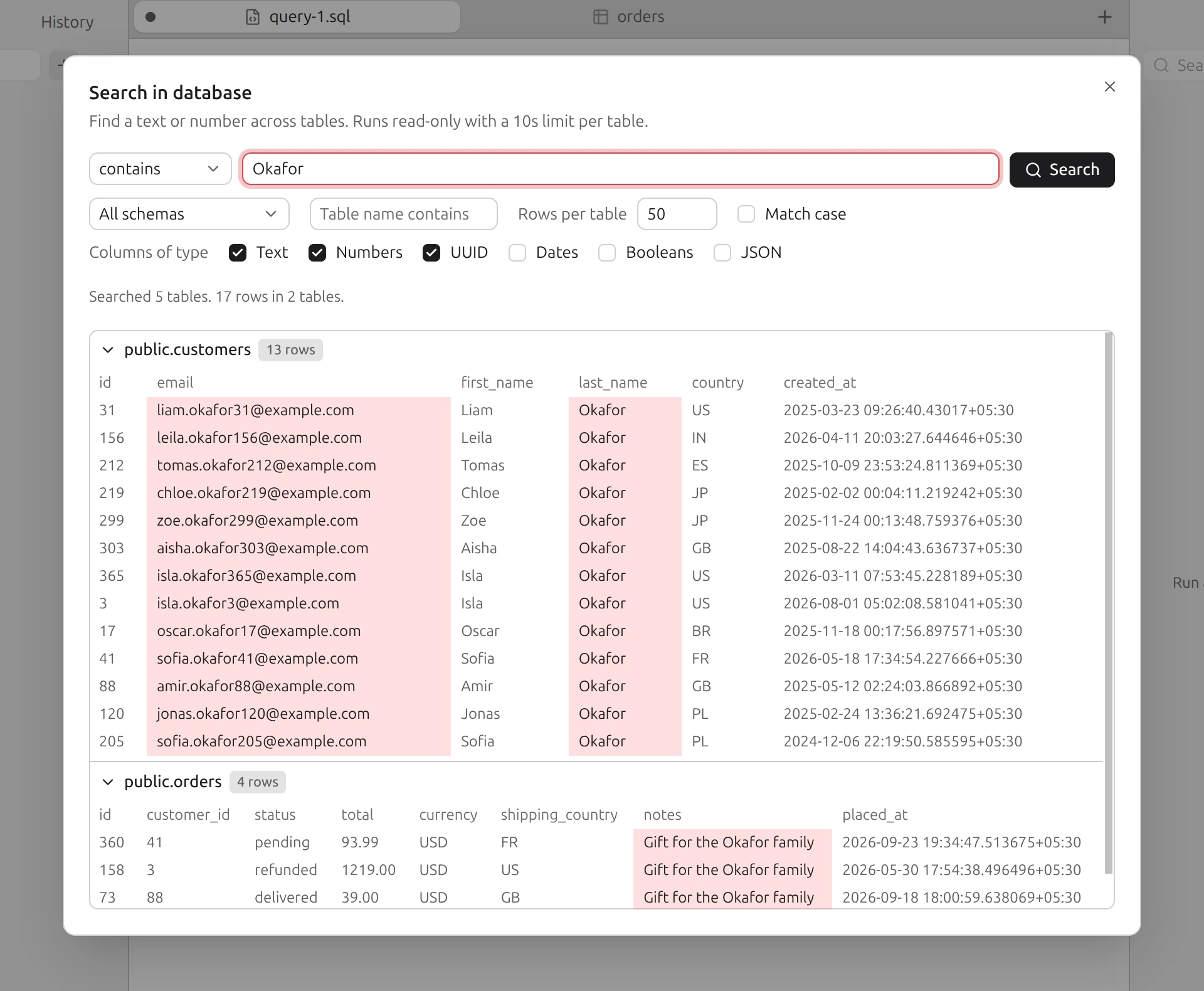
Search in database… (PostgreSQL) finds a value in every table. Type the text or number, then choose how to match: contains, equals, starts with or matches regex, with an optional Match case. Narrow it by schema and a table-name filter, set the rows per table (default 50, at most 1,000), and tick the column classes to search: text, numbers and UUIDs by default, and optionally dates, booleans and JSON. Results are grouped by table with the matches highlighted; Open in table jumps to the rows.
- It runs one read-only
SELECTper table on a side connection, each with a 10-second limit, so a slow table does not hold up the rest. The term is sent as a bind parameter. - The dialog shows up to 100 rows per table.
Data files#
Local CSV, Excel, Parquet and JSON files are queried with DuckDB through Open data file…. That workflow, and attaching a Postgres database next to your files, has its own page: DuckDB and data files.