Engine guides
OpenSearch.
Browse indices and cluster state, search documents with a query string or the query DSL, run SQL through the SQL plugin, use a Dev Tools-style console, and manage mappings, aliases, templates and lifecycle policies.
Connecting#
Choose OpenSearch or paste an https://, http:// or opensearch:// URL; the default port is 9200. Authenticate with a username and password, an API key or AWS SigV4 (Amazon OpenSearch Service, domain or serverless), and add a path prefix and extra nodes if needed; see OpenSearch fields. When you connect, Plasma checks that the server answers like OpenSearch and reports its version; a server that does not is refused. SSH tunnels are not offered for OpenSearch.
Indices and the overview#
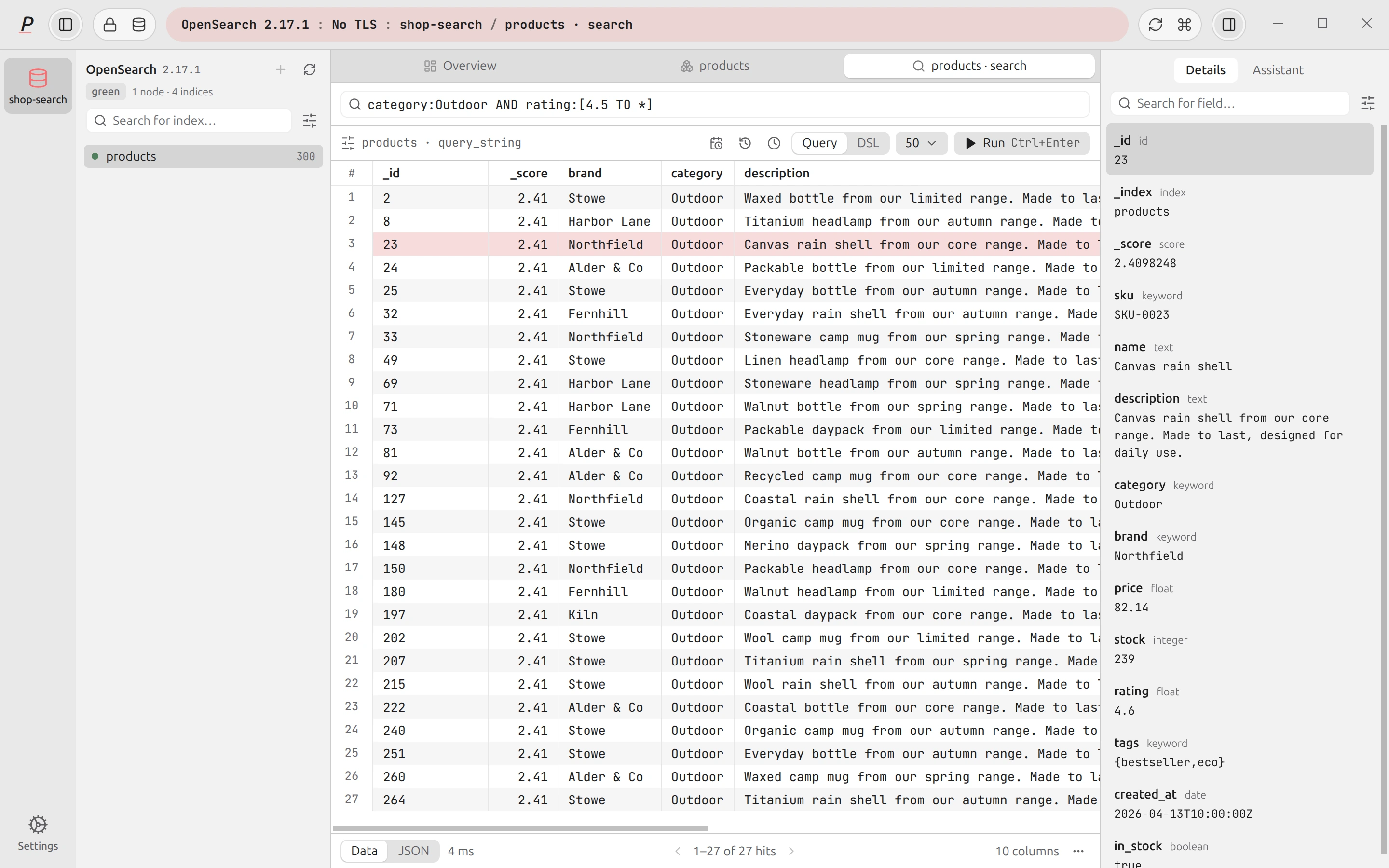
The sidebar lists indices with a health dot and, on hover, status, document count and size. Filter with Search for index…. The options menu has Open SQL canvas, Open console, New index…, Refresh, Show system indices and Group rolling indices (date-suffixed indices such as logs-2026.10.01, rollover-numbered ones and data-stream backing indices fold into one entry when at least three share a prefix). Each row opens a search on that index.
The cluster Overview tab shows the cluster name, distribution and version, health, node, index and document counts, store size and shards, with tabs for Overview (indices, aliases and lifecycle policies), Nodes, Shards, Tasks, Snapshots and Templates. It can auto-refresh every few seconds (off by default).
Searching documents#
- Query. Type a
query_stringexpression such asstatus:200 AND user.id:*and press Enter (or ⌘⏎Ctrl+Enter). If the index has a date field, a time-range menu limits results to the last 15 minutes, hour, 24 hours, 7 days, 30 days or year. - DSL. Switch from Query to DSL to write the request body yourself. A
sizein the body wins over the page-size menu. - Fields. Show field list opens a tree of the index mapping with Filter fields…, and lets you choose which columns the table shows (show all, hide all, reset).
- Results. View them as Data (a table; click a column to sort), JSON or, when the request has them, Aggregations. Page forwards and back, and set the documents per page.
The Document actions menu has View document… (Edit document… in edit mode), New document…, Delete document, Delete matching documents… (a _delete_by_query, with the match count in the confirmation), Copy page as JSON and Copy page as CSV.
Console and SQL#
The Console sends any request: pick a method (GET, HEAD, POST, PUT, DELETE or PATCH), type a path such as /_cat/indices?v and a JSON body, and press ⌘⏎Ctrl+Enter. Example buttons fill in common reads (cluster health, indices, nodes, shards, cluster settings, tasks). A request that can change the cluster asks for confirmation (“This request can change the cluster.”), and a long request can be cancelled.
The SQL canvas sends a SELECT to the SQL plugin (/_plugins/_sql) and shows rows; the plan button shows the query plan from _plugins/_sql/_explain. A statement that is not a read asks first.
Write safety#
Plasma classifies every request. Anything it cannot prove is a read counts as a write: for example POST to _search, _count or _msearch and SQL SELECT are reads, while other POST, PUT, DELETE and PATCH requests are writes. On a connection marked Read-only, writes are refused in the app’s main process and again in the driver, whichever view they come from.
- Write buttons are enabled only with edit mode on (the lock button) and a writable connection. Disabled buttons say why in their tooltip.
- On a Prod-tagged connection every write asks first; elsewhere destructive ones do.
Index details and operations#
Opening an index from its page shows tiles for documents, deleted documents, store size, shards (primaries and replicas) and status, and the tabs Mapping (field, type, multi-fields and properties), Settings, Aliases and Stats.
| Operation | What it does |
|---|---|
| Refresh | Makes recent writes searchable. |
| Flush | Flushes the translog to disk. |
| Clear cache | Clears the query, request and field data caches. |
| Force merge to 1 segment… | Heavy I/O. Only for read-only indices. |
| Close index… / Open index | A closed index cannot be read or written until opened again. |
| Block writes / Allow writes | Sets or removes index.blocks.write. |
| Reindex | Copies every document into a destination index you name. |
New index… creates an index, and an index can be deleted from its row or page (it asks first). The cluster pages let you cancel a task, create a snapshot in a repository and restore a selected snapshot, and list index templates and their patterns.
Health advisor#
Health in the icon rail shows read-only requests about the cluster: Cluster health and unassigned shards, Why shards are unassigned (the allocation explanation for each, also reachable from the Shards tab as Why is this shard where it is (or unassigned)?), Disk usage and watermarks per node and Hot threads. It reports a red cluster and a cluster that is not ready (HTTP 503) in plain words.
AI on OpenSearch#
The assistant writes query DSL or SQL for OpenSearch. With row data allowed on the connection it can run read-only os_search (first 50 hits) and os_sql requests to look at your data. See AI assistant.