Working with data
Results and editing data.
The result grid, filters and sorting, the value viewer, editing cells with a reviewable commit, conflict detection, foreign-key navigation, export, charts, Result Compare and presentation mode.
The grid#
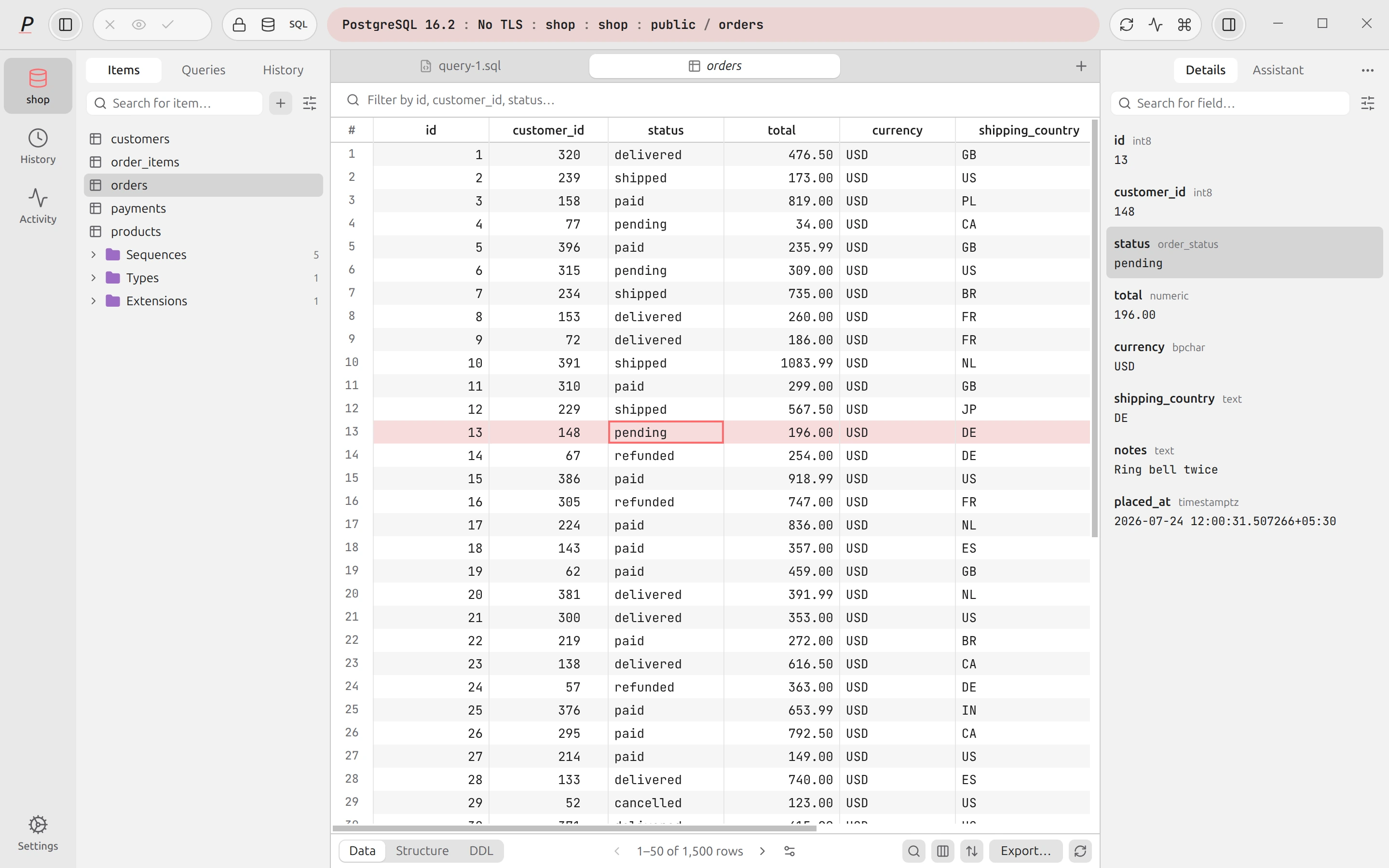
A table tab opens a table in pages; a SQL tab shows the result of the statement you ran. A table tab has three views, chosen at the bottom left: Data (rows), Structure (columns, constraints, indexes) and DDL (the CREATE TABLE definition). A SQL result has Data, Message (notices and errors, with a dot when there is something to read) and Chart. A script that fails part-way keeps the results of the statements that ran and adds an Error tab.
Selecting and moving#
| Do this | Result |
|---|---|
| ↑ | Arrow keys move the cell selection. Add Ctrl or Cmd to jump to the first or last row or column; Home, End, PageUp and PageDown also work. |
| Tab / Shift+Tab | Next or previous cell. |
| Drag, or Shift+click | Select a range of cells. |
| Space | Open the value viewer for the cell. |
| Enter | Open the row in the Details panel. |
| ⌘FCtrl+F | Find in results. |
| ⌘CCtrl+C | Copy the cell or the selected range. |
| Esc | Clear the selection or close the find bar. |
When a range with numbers is selected, the footer shows its count, sum and average; click it for count, sum, average, minimum and maximum of every selected column (dates get minimum and maximum, and every column gets a NULL count).
Columns#
Right-click a column header, or use the menu button on it, for Sort ascending, Sort descending, Clear sort, Filter by this column… (table tabs), Freeze columns up to here, Unfreeze all columns, Auto-fit width, Hide column and Copy column name. The Columns button in the toolbar lists every column with a show/hide toggle, a search box and Hide every column. In a table tab you can sort by several columns (Sort lists the active keys, each with a button to flip its direction or remove it).
The header menu also has Mark as sensitive, Not sensitive: stop masking and Reset masking to automatic for presentation mode.
Filtering a table#
In a table tab, add a filter from the filter bar, from Filter by this column…, or from the cell context menu (Filter: column = value). Filters are combined with AND, and each shows as a chip you can edit. The operators offered depend on the column’s type:
| Type | Operators |
|---|---|
| Numbers, dates, UUIDs | =, !=, >, <, >=, <=, between, in list, not in list, is null, is not null |
| Text and JSON | =, !=, contains (ILIKE), matches (LIKE), does not contain, does not match, in list, not in list, is null, is not null. Contains is the default. |
| Booleans | =, !=, is null, is not null |
| Other types | =, !=, the pattern operators, is null, is not null |
Pattern values are wrapped in % by the app. For in list type values separated by commas, and for between type low, high. A small button shows Query sent for this view, the exact SQL behind your filters, sort and page. Ask in the same bar takes a plain-English description of the view; see AI tasks.
Paging and row counts#
The footer has Previous page, Next page, Page settings (rows per page: 50, 100, 300, 500 or 1,000; the default for newly opened tables is 50 and is set in Settings → Table & grid → Page size, which offers 50, 100, 250, 500 or 1,000) and a Go to page box. On PostgreSQL, a table bigger than the Row counts threshold (default 100,000 rows) shows the planner’s estimate from pg_class.reltuples instead of running count(*); the tooltip says so. Set the threshold to Always count exactly to turn that off.
Value viewer and row details#
Space (or a double-click on a cell you cannot edit) opens the full value in a popover with the column name and type, a Copy button and the character count. JSON is shown as a tree with a Filter keys / values… box. If the cell is a foreign key, a Referenced by list links to the tables that point at it.
Enter shows the whole row as a form in the Details panel (right sidebar, ⌘⇧BCtrl+Shift+B), with Search for field…, per-field Copy and Copy row as JSON. With no row selected it shows the table’s total, data and index size, estimated rows and comment.
Editing cells#
Editing is deliberate. Turn on edit mode (the lock button in the top bar), and the footer gains + Row and Delete row buttons. Nothing is written when you change a cell; the change is staged, and the top bar counts the staged changes next to the Commit button.
- 01
Change cells
Double-click a cell, press F2 or start typing. Type-aware editors open for JSON, arrays, dates, times, timestamps (with and without time zone), enums, booleans, UUIDs (with a generate button) and binary data (bytea, editable up to a size limit). Enter commits the edit to the staging area, Tab moves on.
- 02
Review
Preview pending changes in the top bar lists every staged change, summarises them (for example “3 updates, 1 insert”) and says they commit as one transaction. Discard pending changes throws them all away. A single change can be removed from the cell menu (Discard change).
- 03
Commit
Commit (⌘SCtrl+S in a table tab) writes everything in one transaction. If anything fails, nothing is saved and the error appears on the button and on the grid. On a Prod connection, or under a Safe mode that asks, you confirm first (“Commit changes to production?”).
More than one cell at once#
- Insert row (+ Row) opens a form; blank fields use the column default or NULL. The row is queued as a pending insert. Duplicate row copies a row the same way.
- Delete row marks the selected rows for deletion; they are removed on commit and can be restored before that. A table with no primary key cannot delete rows safely, and the button says so.
- Set NULL, Set value… (one value for every selected cell) and Fill down (⌘DCtrl+D) work on a selected range. Find & replace… (⌘⇧HCtrl+Shift+H) stages replacements across the results so you can review them.
- Paste pastes a block of cells. If it runs past the last loaded row Plasma asks whether to add the extra rows as new rows.
Conflict detection#
Two people can edit the same table. Plasma does not overwrite a change it cannot see: the statement for an update carries the values you saw in the columns you changed, and a delete carries the whole row you saw. If the row was changed (or removed) since you loaded it, the statement matches nothing and Plasma reports a conflict instead of saving.
Nothing is saved when this happens and all your edits stay staged. A dialog titled A row changed while you were editing shows, per row, the value you loaded, the value on the server now and yours. Choose Keep mine to re-stage your change on top of the new values, or Take theirs (Drop my change when the row is gone) to give yours up. Closing the dialog keeps everything staged.
- Columns whose values exceed 64 KiB, or whose type has no usable equality, are not compared.
- On MySQL, text is compared with the column’s collation, so a change of letter case alone can go unnoticed on a case-insensitive collation.
- A new row that uses a key which already exists is reported (“uses a key that already exists”) rather than overwriting anything.
Where grid editing works#
PostgreSQL, MySQL/MariaDB and SQLite edit through the grid. ClickHouse and DuckDB results are read-only in the grid (the lock button says “Rows are read-only for this engine”); change data there with SQL. Redis and OpenSearch have their own editors. A read-only connection never lets you edit.
Foreign-key navigation#
A cell that holds a foreign key shows a small arrow. Click it to open the referenced table filtered to the row the value points at (composite keys work). Hover the arrow for about half a second, or press Alt+Enter or Alt/Option-click the cell, to peek at that row in a popover with an Open button, without leaving your tab.
The cell menu also lists Open <table> row, Peek <table> row and a Referenced by list (the other direction): tables whose foreign keys point at this row, with a count, so you can go from an order to its items. Longer lists continue in the Details panel.
Export and copy#
The Export button offers CSV, JSON and SQL INSERT, and a Copy as row with Markdown, HTML and TSV. A scope switch chooses what to export:
- Selected — the selected rows;
- Loaded / All rows — what is in the grid now;
- Whole table, All matching (when filters are set) or Full result — the data beyond what is loaded. The server query is run again and streamed straight to the file, so size is not limited by memory. For a SQL result this re-runs the statement only if it is a single read-only query; a statement that changes data is never re-executed for an export.
A progress bar shows the running export (Exporting CSV · …) with a Cancel button. Shortcut: ⌘⇧ECtrl+Shift+E exports CSV. In the grid, Copy selection as offers tab-separated (with or without header), CSV (with or without header), JSON, Markdown and SQL INSERT.
CSV defaults live in Settings → Table & grid: delimiter (comma, semicolon, tab or pipe), quote, NULL as empty or the word NULL, LF or CRLF line endings, a header row, and Spreadsheet safety, which prefixes cells starting with =, +, - or @ with an apostrophe so Excel and Sheets do not run them as formulas (on by default). In presentation mode, values you copy to the clipboard are masked.
Charts#
Switch a SQL result to Chart (enabled when it has rows). Choose a Type (bar, line or area), an X axis column and one or more Y axis columns; only numeric columns are offered for Y. A chart plots at most the first 200 points of the result. It is drawn locally from the rows you already loaded.
Result Compare#
Compare with… (the compare button in the result footer, or Compare results… in the palette) diffs two result sets. The second side can be another tab’s result, or the same query run read-only on any other saved SQL connection — staging against production, say. It opens in its own tab.
- Pick a Key: the columns that identify the same row on both sides. Plasma suggests keys. With no key, whole rows are matched, so a changed row shows as one removed and one added; with a key, a change shows cell by cell.
- Ignore columns such as
updated_at; set a numeric ± tolerance; ignore case; trim and collapse whitespace. - Columns are matched by name. NULL equals NULL and never equals an empty string. Numbers compare as numbers (
1.50equals1.5), and integers past 253 compare exactly. A key that appears twice on one side is reported as a duplicate instead of being merged. - Filter by added, removed, changed, unchanged or duplicate rows. Export the differences as CSV or JSON. A comparison can be saved by name (it stores the queries, connections, key and ignore rules, not the rows) and run again later.
- Each side is capped at 200,000 rows; a truncated side is flagged.
Presentation mode and masking#
For screen sharing and demos, presentation mode (⌘⇧MCtrl+Shift+M, or Settings → Security) masks sensitive data on screen. It hides emails, phone numbers, card numbers, IP addresses and columns whose names look like password, token, address and so on, in the grid, the details panel, the value viewer, the clipboard and the AI context, and the host name in the title and the connection capsule. Masking is display only: nothing stored changes, and edits and keys still use the real values.
- Masking style (Settings → Security): First letter (
a•••@example.com), Last four (•••• 4242) or Everything (•••). Passwords, tokens and secrets are always fully masked. - Per connection, mark a column Mark as sensitive or Not sensitive: stop masking from the column header menu when the automatic detection is wrong.
- A masked cell offers Reveal value (10 s) from its menu, and Mask value again.